How to prevent drive thru digital menu board problems from costing you revenue—and what to do when failures happen.
It's 11:47 AM. Your lunch rush is building. A six-car line is forming in the drive-thru.
Then the menu screen goes black.
Staff scrambles. The first car sits at the order point, confused. The second car honks. By the time someone props open the window to shout menu items, three cars have pulled out of line and driven to your competitor across the street.
This scenario plays out at QSR locations every day. And the cost is staggering.
---
The Drive-Thru Revenue Stakes
For most quick-service restaurants, the drive-thru isn't just another ordering channel—it's the primary revenue generator.
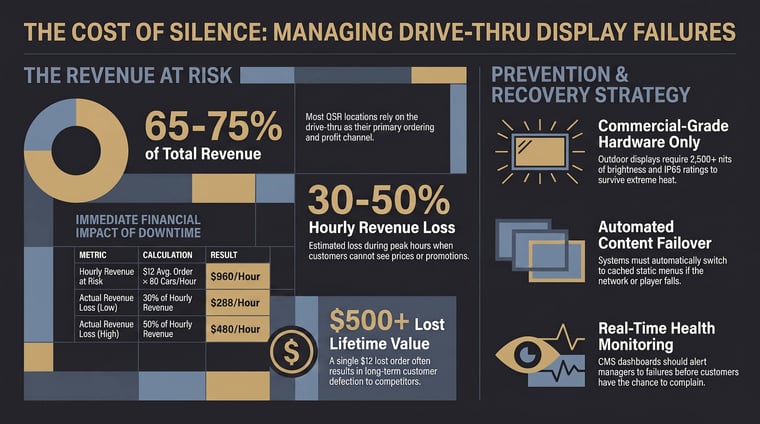
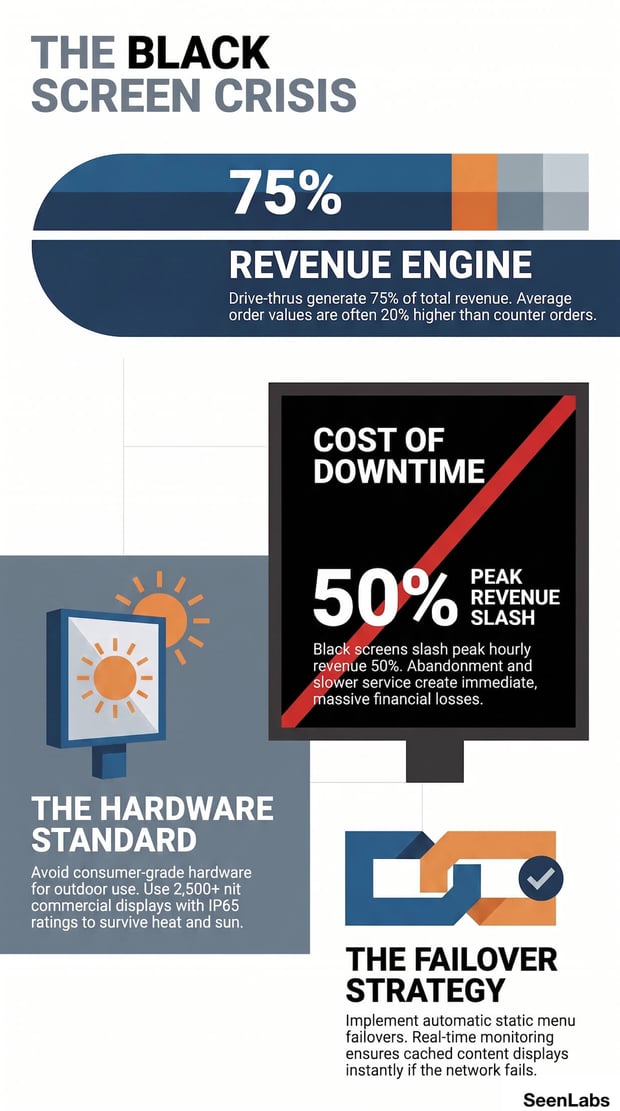
- Drive-thru lanes account for 65-75% of total revenue at many QSR locations
- Peak hours can see 100+ cars per hour at high-volume locations
- Average order values in drive-thru are often 15-20% higher than counter orders
When that menu screen fails, you're not losing a display. You're losing your most profitable ordering channel.
---
The Anatomy of a Drive-Thru Failure
Drive-thru digital menu boards face harsher conditions than any other restaurant display. Understanding why they fail helps prevent failures.
Common Causes
Overheating Outdoor displays in direct sunlight can reach internal temperatures of 140°F+. Consumer-grade displays aren't designed for this. Even commercial displays need proper ventilation and thermal management.
Power Surges Electrical storms, utility fluctuations, and compressor startups on nearby HVAC equipment can send damaging spikes through display electronics.
Software Crashes Media players running content loops can experience software hangs, memory leaks, or corrupted content that freezes or crashes the display.
Connectivity Loss Cloud-connected content systems depend on network availability. A failed router, severed cable, or ISP outage can leave displays with nothing to show.
Hardware Degradation Even quality displays age. Power supplies weaken. Fans accumulate dust. LED backlights dim. What worked last year may fail this summer.
The Cascade Effect
Drive-thru displays typically work as a system. When one screen fails:
- Customers may not see prices for what they ordered
- Promotional content disappears
- Order confirmation displays may go dark
- The entire lane experience degrades
One black screen affects every customer behind it until service is restored.
The Financial Impact
How much does a drive-thru display failure actually cost?
The Downtime Calculation
Hourly revenue at risk:
- Average order value × Cars per hour = Hourly revenue
- Example: $12 × 80 cars/hour = $960/hour at risk
Actual loss during downtime: Not every car abandons the lane, but common observations suggest:
- 10-30% of customers drive off when they can't see prices
- Remaining customers order more cautiously (reduced ticket value)
- Service slows as staff verbally communicates menu
A reasonable estimate: 30-50% revenue loss per hour of downtime during peak periods.
The Customer Lifetime Cost
It's not just the lost transaction. A customer who drives off to a competitor:
- May not return for weeks or months
- May establish a new routine at the competitor
- May share the experience with others
One $12 lost order can represent $500+ in lost lifetime value if that customer defects.
The Social Media Risk
"Went to [Restaurant] and their menu was completely broken. Just stared at a black screen for 5 minutes. 🙄"
One viral post can reach thousands. The reputational cost is harder to calculate but very real.
---
Why "It'll Be Fixed Tomorrow" Isn't Good Enough
When operators hear their drive-thru display went down, the natural response is to call the vendor and schedule a repair. But hours or days of downtime during peak periods is unacceptable.
The No-Backup Problem
Most drive-thru installations have no failover strategy:
- When the screen dies, customers see nothing
- No static image backup loads automatically
- No printed backup is readily available
- Staff isn't trained on verbal menu delivery
The display is a single point of failure with no redundancy.
Staff Improvisation Attempts
Without training or tools, staff attempts to compensate:
- Shouting menu items through the headset (slow, error-prone)
- Handwriting menu on cardboard (looks terrible, hard to read)
- Asking customers to "just pull up to the window" (creates order confusion)
None of these are acceptable substitutes for a working display.
Prevention Strategies
The best downtime is prevented downtime. Here's how to reduce failure risk.
Hardware Selection
Commercial-Grade vs. Consumer-Grade Consumer displays (TVs from electronics stores) aren't designed for:
- 24/7 continuous operation
- Extreme temperatures
- Outdoor moisture exposure
- Sunlight washout
Commercial-grade outdoor displays cost more upfront but last longer and fail less often. The ROI calculation almost always favors commercial equipment.
IP Ratings For outdoor drive-thru, look for IP65 or higher:
- IP65: Dust-tight, protected from water jets
- IP66: Dust-tight, protected from powerful water jets
- IP67: Dust-tight, brief submersion protection
Brightness Requirements Outdoor displays need high brightness to remain visible in direct sunlight:
- 2,500+ nits for full sun visibility
- 3,000-4,000 nits for west-facing installations
Consumer displays typically offer 300-500 nits. They're not even close.
Monitoring & Alerting
Real-Time Health Dashboards Your CMS should provide visibility into display status:
If you find out about failures from customers instead of your dashboard, your monitoring is insufficient.
Automatic Alert Escalation When a display goes offline:
- Immediate alert to on-duty manager
- 15-minute escalation to area supervisor
- 30-minute escalation to IT/vendor support
- Clear escalation path documented and followed
Don't rely on staff noticing the problem.
Remote Diagnostic Capability Before dispatching a technician, can you:
Remote diagnostics can resolve many issues without on-site visit.
Failover Systems
Static Image Backup Configure your CMS to display a static menu image when:
- Content network is unavailable
- Media player loses connectivity
- Primary content fails to load
This should happen automatically, without human intervention.
Verbal Menu Fallback Protocol Train drive-thru staff on backup procedures:
- Prepared script for "Our menu display is temporarily down"
- Verbal menu for top 10 items with prices
- Apology and discount for inconvenience
Practice this quarterly so staff is prepared.
Printed Menu on Standby Keep a weatherproof printed menu in the drive-thru area:
- Large format, laminated
- Current pricing
- Can be propped in window or attached to order point
It's low-tech, but it works when digital fails.
---
Recovery Playbook
When failures happen despite prevention efforts, fast recovery matters.
Immediate Steps (First 5 Minutes)
1. Verify the failure — Is it actually down, or did someone turn off the display? 2. Attempt remote restart — If CMS supports it, reboot the media player 3. Implement backup — Deploy static image or printed menu 4. Notify vendor — Open support ticket immediately
Staff Communication
Brief drive-thru staff immediately:
- "The menu display is down. Use the verbal backup script."
- "Apologize to customers and offer [discount/free item]."
- "Track affected orders for manager follow-up."
Clear instructions reduce chaos.
Customer Communication
Prepare scripts for customers:
- "I apologize—our menu display is temporarily offline. I can help you with our most popular items..."
- "Thank you for your patience. Here's [discount] for the inconvenience."
Professional handling turns a negative into a recovery opportunity.
---
How SeenLabs Helps
SeenLabs CMS provides the monitoring and failover capabilities that keep drive-thru lanes running:
Remote Health Monitoring Real-time visibility into every display's status. Know when screens go offline before customers tell you.
Automatic Failover Content When network connectivity fails, displays automatically switch to cached static content—no black screens, no staff intervention.
Remote Restart Commands Trigger player restarts from the dashboard when hardware supports it. Resolve software hangs without dispatching technicians.
Hardware Selection Guidance Recommendations for commercial-grade outdoor displays that meet the demands of drive-thru environments.
---
Conclusion: Uptime Isn't Optional
For drive-thru-dependent QSR operations, digital menu reliability isn't a nice-to-have. It's a revenue requirement.
Key Takeaways
1. Drive-thru display failure = revenue failure — Calculate your hourly cost of downtime 2. Consumer-grade hardware fails outdoors — Invest in commercial-grade displays 3. Monitoring catches failures fast — Real-time dashboards beat customer complaints 4. Failover prevents black screens — Static content should load automatically 5. Recovery playbooks reduce chaos — Train staff before failures happen
The investment in prevention and monitoring pays for itself in avoided downtime—usually within the first incident you prevent.
---
Downtime Cost Calculator
Your quick estimate:
- Average order value: $______
- Cars per hour (peak): ______
- Peak hours per day: ______
Hourly revenue at risk: Order value × Cars/hour = $______
Estimated loss per hour of downtime (30-50%): $______
Is your current monitoring investment justified?
---
Ready to Eliminate Drive-Thru Downtime?
---
About SeenLabs
SeenLabs builds digital signage solutions with reliability engineered in. Our platform monitors display health in real time and provides automatic failover—so your drive-thru keeps running, even when things go wrong.