Understanding kiosk workflow design that fights natural user behavior—and how to create linear ordering flows that speed transactions.
---
Watch a customer use a poorly designed kiosk. Their eyes dart left. Their hand reaches right. They tap top-center, then bottom-left. Back to center. Frustrated sigh. Try again.
This is the non-linear workflow problem— interfaces that scatter interaction points across the screen, forcing users' eyes and hands to constantly reposition. The result: slower transactions, more errors, and exhausted customers who may not return to the kiosk.
This article explains why linear workflows outperform scattered interfaces, and how to evaluate your current kiosk design.
The Hidden Cost of Poor Navigation
Kiosk transaction time isn't just about processing speed. A significant portion is navigation time—the seconds spent figuring out where to look, what to tap, and how to proceed.
Poor navigation costs:
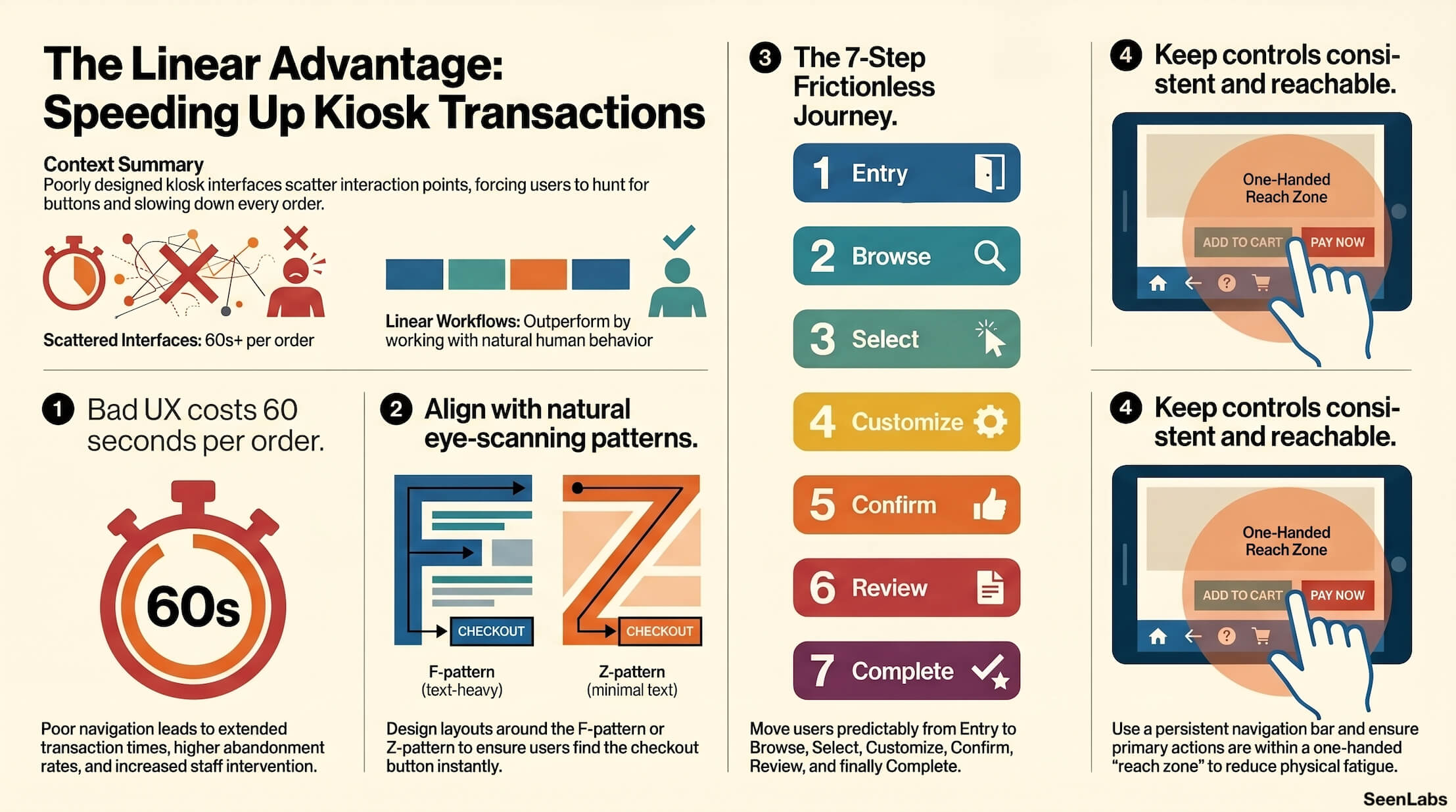
- Extended transaction time (30-60 seconds per order)
- Increased abandonment (customers giving up mid-order)
- Higher error rates (wrong items, missed customizations)
- Staff intervention (helping confused customers)
These costs multiply across hundreds or thousands of daily transactions.
---
The Eye-Tracking Problem
The human visual system has predictable patterns. Good interfaces work with these patterns; bad interfaces fight them.
Natural Reading Patterns
Research on how people scan screens shows consistent behaviors:
F-Pattern: For text-heavy screens, users scan horizontally across the top, then down the left side with occasional horizontal scans.
Z-Pattern: For minimal text, users scan from top-left to top-right, then diagonally to bottom-left, then across to bottom-right.
How Scattered Layouts Fight Natural Behavior
When critical elements are placed against these patterns:
- Users miss important information
- Scanning takes longer
- Mental processing increases
- Frustration builds
A checkout button in the bottom-right works with Z-pattern. A checkout button in the top- center fights it.
Cognitive Load of Visual Searching
Every search for a UI element consumes attention:
- "Where's my cart?"
- "How do I go back?"
- "Where's the checkout button?"
This cognitive load accumulates through the transaction, leaving users mentally exhausted and more likely to make errors or abandon.
---
Common Layout Mistakes
Certain patterns appear repeatedly in problematic kiosk designs.
Scattered Controls
Menu categories in unpredictable locations:
- Horizontal tabs at top for some sections
- Vertical list on left for others
- Pop-up overlays for special items
Users can't build mental models of where to find things.
Cart that moves or is hidden:
- Cart appears in different corners on different screens
- Cart icon changes position based on content
- Cart requires scrolling to access
The cart is the user's anchor—it should never move.
Checkout button placement inconsistency:
- Bottom-right on some screens
- Center-bottom on others
- Top-right after customization
- Full-width bar at payment
Users should always know exactly where to tap to proceed.
Inconsistent Patterns
Different layouts for different menu sections:
- Burgers shown as grid
- Drinks shown as scrolling list
- Sides shown as carousel
Each new layout requires learning new interaction patterns.
Modifier screens that don't match item screens:
- Item selection uses tiles
- Modifier selection uses radio buttons
- Payment selection uses toggle switches
Consistency reduces learning time and errors.
Reachability Issues
Critical controls at screen edges:
- On large kiosk screens, edges require arm extension
- Repeated reaching causes physical fatigue
- Some users (shorter, wheelchair users) can't reach edges easily
Actions requiring hand repositioning:
- Every hand movement is friction
- Transactions requiring constant repositioning are exhausting
- One-handed operation should be possible for common flows
The Linear Flow Principle
Effective kiosk design follows a predictable sequence:
The Ideal User Journey
1. Entry: Welcome/start screen (one option: "Order Here") 2. Browse: Category selection (restaurants main menu areas) 3. Select: Item choice within category 4. Customize: Modifiers if applicable (additions, removals, sizes) 5. Confirm: Add to cart or continue building 6. Review: Cart summary with edit capability 7. Complete: Payment and confirmation
Each step focuses on one decision. Each step leads naturally to the next.
Why Linear Works
Predictable progression:
- Users always know what comes next
- No confusion about current stage
- Easy to estimate time to completion
Reduced cognitive load:
- One decision per screen
- No competing information
- Clear call-to-action
Error recovery:
- Easy to go back one step
- Clear path to cart for review
- No fear of getting "stuck"
---
Designing for Speed
Beyond linear flow, specific design choices accelerate transactions.
Minimal Screen Transitions
Each screen transition is:
- Loading time
- Re-orientation time
- Decision time
Combine decisions where possible. If a meal has standard components, don't require separate screen for each component unless customization is requested.
One-Handed Operation
Many kiosk users are:
- Holding a phone
- Holding a child's hand
- Managing bags or items
Design primary flows to be completed with one hand in comfortable reach zone (center-left to center-right at chest height).
Common Actions Always Accessible
Certain actions should be accessible from any screen:
- View cart
- Start over
- Get help
- Return to categories
A persistent navigation bar (typically bottom) accomplishes this without cluttering content areas.
Clear Progress Indication
Users should always know:
- Where they are in the process
- How many steps remain
- That their actions are registering
Progress bars, step indicators, and visual feedback provide confidence.
---
Testing and Optimization
Don't assume your workflow works—test it.
User Testing Methodology
First-time user tests:
- Recruit users unfamiliar with your interface
- Give them ordering tasks without guidance
- Watch where they hesitate, backtrack, or struggle
- Time total transaction and identify slowest phases
Thinking aloud protocol:
- Ask users to verbalize their thoughts while ordering
- Capture confusion, frustration, and uncertainty
- Identify specific elements causing problems
Heatmap Analysis
If available, heatmap data shows:
- Where users tap most frequently
- Where users tap but shouldn't (misses)
- Areas users never engage with
- Scroll behavior patterns
Heatmaps reveal whether your layout matches actual user behavior.
Transaction Time Benchmarking
Measure and compare:
- Average transaction time by order complexity
- Transaction time by user familiarity (first-time vs. repeat)
- Transaction time compared to counter ordering
- Abandonment rates at each stage
Set targets and track improvement.
A/B Testing Layout Variations
For significant changes:
- Deploy variations to different kiosk sets
- Compare metrics across variations
- Ensure statistically significant sample
- Implement winning variation system-wide
---
How SeenLabs Contributes
Kiosk workflow design is determined by ordering software vendors. SeenLabs contributes through:
Best Practice Education Documenting linear flow principles and helping operators understand what makes kiosk UX effective.
Vendor Evaluation Criteria Helping operators assess kiosk solution quality with informed evaluation frameworks.
Content Alignment Ensuring menu board layouts complement kiosk flow—consistent visual language across digital touchpoints.
Industry Benchmarking Comparing workflow patterns across major brands to identify what works in practice.
---
Conclusion: Linear Beats Scattered
The best kiosk interfaces feel effortless because they guide users through a predictable sequence with consistent patterns.
Key Takeaways
1. Work with natural eye patterns — Place elements where users naturally look 2. Keep controls in consistent positions — Build muscle memory 3. One decision per screen — Reduce cognitive load 4. Make common actions always accessible — Cart, help, navigation 5. Test with real users — Assumptions don't reveal reality 6. Measure transaction time — What gets measured improves
The kiosk that respects user cognition earns faster transactions, fewer errors, and better adoption rates.
Quick Wins for Existing Kiosks
- [ ] Audit control placement consistency across screens
- [ ] Ensure cart is visible and in same position on every screen
- [ ] Add clear back/cancel options to every screen
- [ ] Test with a first-time user watching silently
- [ ] Time typical transactions and compare to counter service
---
Ready to Improve Your Kiosk Workflow?
---
About SeenLabs
SeenLabs builds digital signage that creates consistent visual experiences across all customer touchpoints. Our platform helps operators align menu boards, kiosks, and mobile with coherent design language.